From a message to a filed invoice
From requesting an account to filing your first invoice with FBR: set up your business, connect your FBR token, prepare and check an invoice, submit it, and keep the record.
1. Ask us for an account
There is no public sign-up form. Message us with your business name and your registration number, and we create the account for you.
You sign in with that registration number — your NTN or CNIC — and the password we send you, so there is no email address to remember.
2. Set up your business
The first time you sign in you enter your seller details: business name, registration number, province and address, and whether you are a retailer.
These are the details FBR sees on every invoice you submit, so they need to match your sales tax registration exactly.
3. Connect your FBR token
Submissions use your business's own FBR digital invoicing credentials. An authorized administrator configures the token in Settings; the stored token is not returned to the browser.
Sandbox and production tokens are kept separately, so switching environments never files a test invoice for real.
4. Prepare the invoice
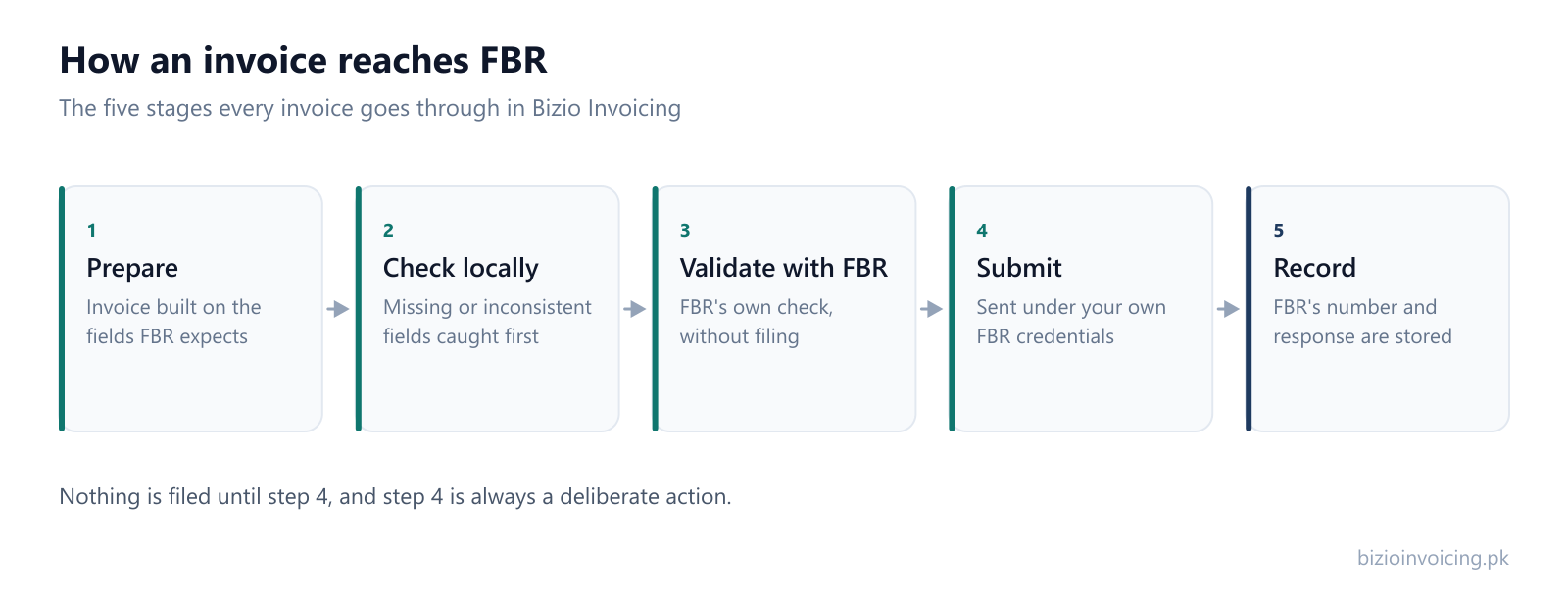
The invoice form is built around the fields FBR expects — document type, buyer registration and province, sale type, HS code, unit of measurement, rate, and SRO schedule and serial where they apply.
Customers and products you have saved can be dropped into an invoice instead of retyped, and the reference lists come from FBR's own data rather than a hand-kept list.
5. Check it before it is filed
The invoice is checked locally first, which catches missing and inconsistent fields immediately. It can then be validated against FBR — the same check FBR runs when filing, without filing anything.
Anything that comes back is shown against the field it belongs to, so you know what to fix rather than only that something failed.
6. Submit
Submitting is its own deliberate step, never a side effect of saving. When FBR accepts the invoice, its response — including the invoice number FBR assigns — is stored with the invoice.
If FBR rejects it, the message it returned is kept against the invoice so you can correct it and submit again.
7. Or file a whole batch
On the Premium plan, upload the supported Excel template to bring in many invoices at once. Rows with matching document type, number, date and buyer registration number become line items on one invoice. Each invoice is tracked separately.
Use Validate with FBR to check eligible invoices without filing them. Review the results, then use Submit to FBR when ready. Rejected only shows invoices whose FBR validation or submission failed.
Bulk FBR invoice upload from Excel, step by step8. Keep the record
Every submission stays in your history with its status and FBR's response, so you can show what was filed, when, and under which number.
Saved customers and products build up as you work, so the second month of filing is quicker than the first.
Sandbox first, production when you say so
New accounts start in sandbox, FBR's test environment. Nothing filed there is a real filing, so you can run the whole process end to end before it counts. Production filing is enabled as a separate step, once your details and your token are in place.
Read next
Ready to file your first invoice?
Tell us your business name and registration number and we will set up your account. You start in sandbox mode, so nothing is filed for real until you are ready to switch to production.
WhatsApp +92 339 4453223 · bizio.official1@gmail.com