Bulk upload FBR invoices from one Excel file
Upload FBR invoices in bulk from Excel. Bizio groups line items into invoices, validates the whole batch with FBR in one click and runs it in the background.
What bulk upload saves you
The repetitive part of FBR digital invoicing is entering and checking invoices one at a time. Bulk upload moves that work into one file and one batch. Included in the Premium plan.
One file instead of one form per invoice
Copy your sales into the supported template and upload it once, rather than keying every invoice into a form.
Line items grouped for you
Rows that share a document number, date, type and buyer become one multi-item invoice automatically.
One click checks the whole batch
Validate with FBR runs every eligible invoice in the batch. It checks without filing, so you can fix problems first.
Keeps running when you close the tab
Validation and submission run on Bizio's servers. Leave the page and the results are waiting when you come back.
No invoice filed twice
Running a batch again skips invoices that already have an FBR invoice number, so a retry cannot file them a second time.
Every invoice keeps its own result
Filter to the rejected invoices, read FBR's reason, correct them and validate again. The rest of the batch is unaffected.
When typing invoices stops being reasonable
If your invoices already exist in a spreadsheet, entering each one again takes time and introduces opportunities for mistakes. Batch upload lets you prepare them together and review their results individually.
Batch filing moves the work to where your data already is. If your sales come out of an accounting package, a point-of-sale system or a spreadsheet someone maintains by hand, copy them into the supported workbook structure. Uploading creates records for review; it does not submit them to FBR.
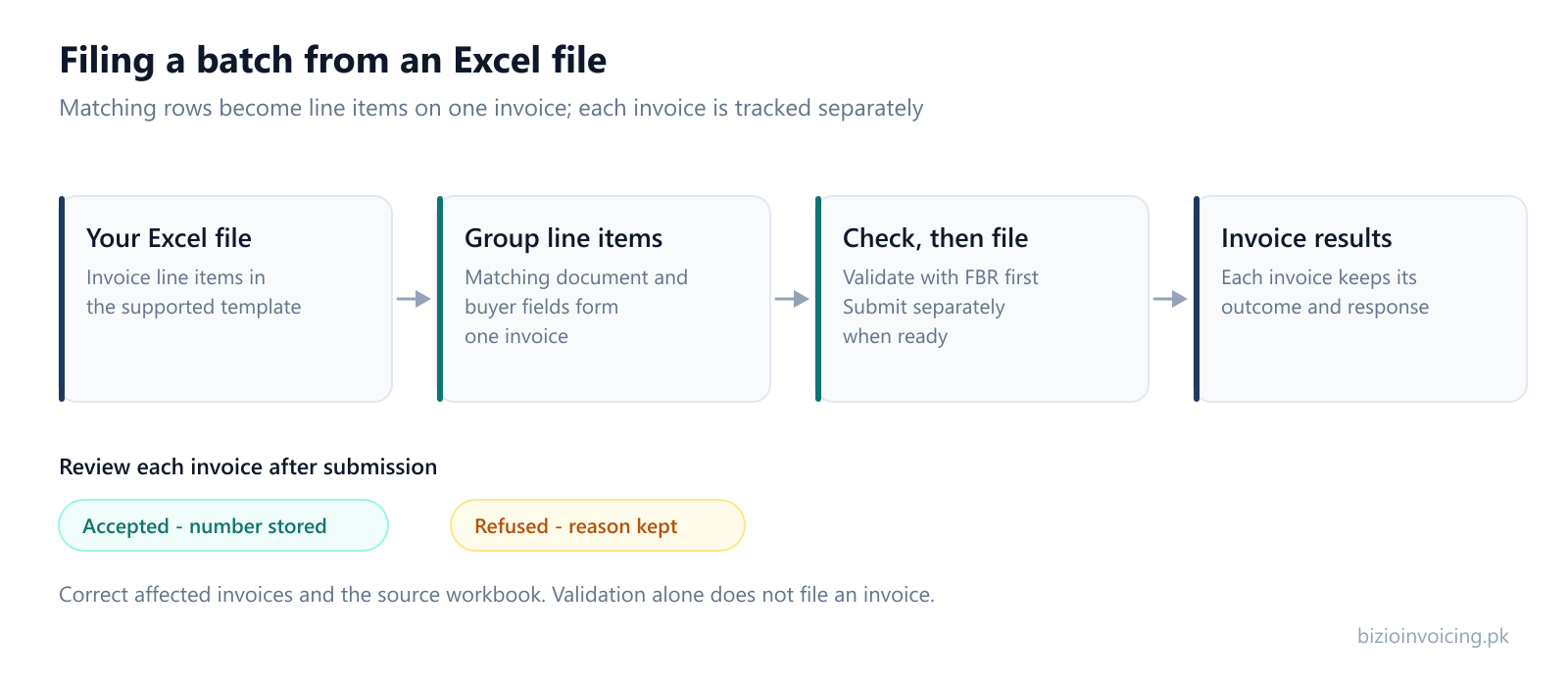
How a batch runs
A spreadsheet row represents a line item. Rows with the same Document Type, Document Number, Document Date and Buyer Registration No are grouped into one invoice. Each resulting invoice is tracked separately.
For example, two rows for document INV-2026-09-0001 with the same date, document type and buyer become one invoice with two items. A different document number starts another invoice. Keep the shared invoice details consistent across its rows.
| Row | Document No. | Date | Buyer | Item | Becomes |
|---|---|---|---|---|---|
| 1 | INV-2026-09-0001 | 01-09-2026 | Buyer A | Item 1 | Invoice 1, line 1 |
| 2 | INV-2026-09-0001 | 01-09-2026 | Buyer A | Item 2 | Invoice 1, line 2 |
| 3 | INV-2026-09-0002 | 02-09-2026 | Buyer B | Item 1 | Invoice 2, line 1 |
Start with the supported workbook
Download the Bizio batch invoice template (.xlsm). Keep its worksheet names and column headings unchanged. Complete the seller details and invoice lines, and check buyer records before uploading. A differently formatted spreadsheet may not import successfully.
Validate first, then submit
- Upload in the intended environment and review local errors.
- Choose Validate with FBR to check eligible invoices without filing.
- Review each result. Rejected only includes FBR validation and submission failures; review local errors separately.
- Correct the affected invoice details and validate again.
- Check the environment and choose Submit to FBR when ready. Production submissions are live filings.
Invoices already submitted are skipped by batch validation and submission. A passed validation is not a filing receipt; check the submission response and FBR invoice number afterward. The invoice validation guideexplains the two checks.
Batch states in Bizio Invoicing
The batch status describes the operation, while individual invoice statuses show which records need attention:
- Uploaded
- The file has been read and invoices are available for review. A validation run also returns to this state; check each invoice's result to see what passed.
- Validating
- Eligible invoices are being checked with FBR. This action does not submit invoices for filing.
- Submitting
- Eligible invoices are being processed for submission. Review each invoice's result as the batch progresses.
- Completed
- The submission run has finished. This does not mean every invoice succeeded: inspect validation failures, submission failures and local errors.
- Failed
- A batch-level operation failed or was interrupted. Read the batch error and review invoice outcomes before deciding what to retry.
A completed batch is where the real reading happens. Each invoice carries its own outcome, so the question is never “did the upload work” but “which invoices need attention” — and those invoices keep FBR's reason attached to them, exactly as a hand-entered invoice would.
Before you upload a whole month
Volume does not create data problems; it reveals the ones already in your records. Check buyer registration details and product classifications before uploading a large file.
- Test a representative file in sandbox first.Review the results before using production; sandbox acceptance does not guarantee production acceptance. What to test in sandbox covers the rest.
- Check your buyers. Registration numbers and registration types must match the intended transaction.
- Check your product classifications. HS code and unit have to agree — see HS codes and units.
- Watch for repeated invoice numbers. A number already filed will be refused, and spreadsheets are very good at producing duplicates.
Fixing what comes back
Open an affected invoice from the batch to read its response and correct its details. Updating a saved customer or product does not automatically rewrite an existing invoice or your workbook. Correct the source spreadsheet too, so a later upload does not repeat the same mistake.
The families of rejection are the same for a batch invoice as for a hand-typed invoice. Why FBR rejects an invoice covers all six.
Bulk upload questions
Can I upload invoices to FBR in bulk?
Yes. In Bizio Invoicing you upload the supported Excel template, review the invoices it creates, validate the whole batch with FBR, and submit it when you are ready. Uploading and validating never file anything; Submit to FBR is a separate, confirmed step.
Do I have to keep the page open while a batch runs?
No. Validation and submission run on Bizio's servers in the background. You can close the tab or move on to other work, and the batch shows each invoice's result when you return.
How do I put several items on one invoice in Excel?
Use one row per line item and repeat the same Document Type, Document Number, Document Date and Buyer Registration No on each row. Those rows are grouped into one invoice with several items.
What happens to invoices that fail?
Each invoice keeps its own status and FBR's message. Filter the batch to the rejected invoices, correct them, then validate and submit again. Invoices that already went through are not affected.
Could submitting a batch again file an invoice twice?
No. Invoices that already hold an FBR invoice number are skipped when a batch is validated or submitted again, and an invoice whose earlier submission was never confirmed is held back for you to check individually.
Which plan includes bulk Excel upload?
Excel batch upload is part of the Premium plan, along with batch results in one place and advanced filters. Customers, products and invoices are unlimited on both paid plans.
Read next
Why FBR rejects an invoice
The six families of rejection, and why most of them are record problems rather than invoice problems.
HS codes and units
The classification decisions that a large upload will test all at once.
What Bizio Invoicing does
Batch filing alongside the invoice form, validation, saved records and submission history.
Ready to file your first invoice?
Tell us your business name and registration number and we will set up your account. You start in sandbox mode, so nothing is filed for real until you are ready to switch to production.
WhatsApp +92 339 4453223 · bizio.official1@gmail.com